

8 Free iPhone Video Editing Apps: No Watermark Test
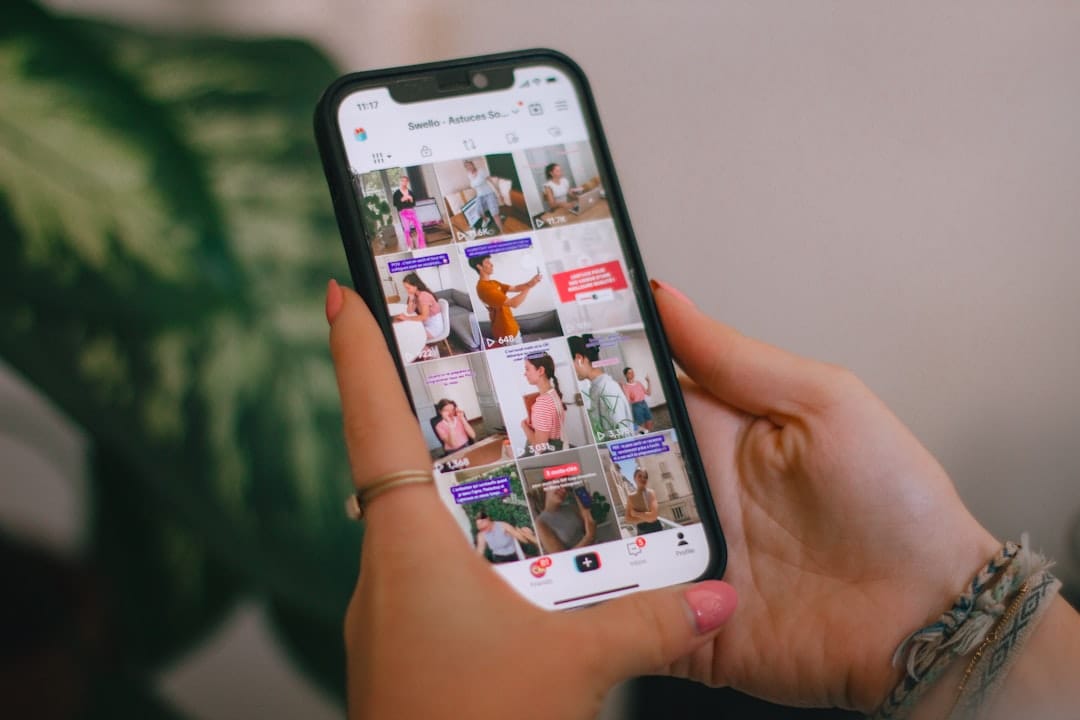
You downloaded a “free” video editor, spent 20 minutes cutting your TikTok, hit export, and discovered a watermark slapped across the corner. Sound familiar? We tested the free tier of 8 iPhone video editing apps to find which ones actually export clean, no watermark, no forced subscription, and which bait-and-switch you at the export button. Every app below was assessed on its free-tier export limits, not its App Store marketing copy.
What Makes a Free Editor Actually Free?

A genuinely free iPhone video editing app lets you export a finished video with no watermark, no trial countdown, and no paywall blocking the resolution you need. Most apps on the App Store use “free” to mean “free to download and edit, but pay at export.” That distinction matters. You can spend an hour on a timeline only to hit a wall at the last step.
Here is what we checked on each app’s free tier:
- Watermark on export: Does the free tier burn a logo into your video? Some apps let you remove it by watching an ad, which is a partial workaround, not a clean export.
- Max export resolution: Can you hit 1080p (the minimum for crisp social playback) or does the free tier cap you at 720p?
- Social format presets: Does the app offer 9:16 (vertical for TikTok and Reels), 1:1 (square for Instagram feed), and 16:9 (landscape for YouTube) without forcing you to manually crop?
- In-app purchase pressure: How hard does the app push you toward a subscription? Are Pro features clearly labeled, or do you discover the paywall only at export?
Once your edit is exported, you may need to preview or share the file from a link. Our online video player lets you paste a URL and watch instantly, no downloads required.
The 8 Best Free iPhone Video Editors
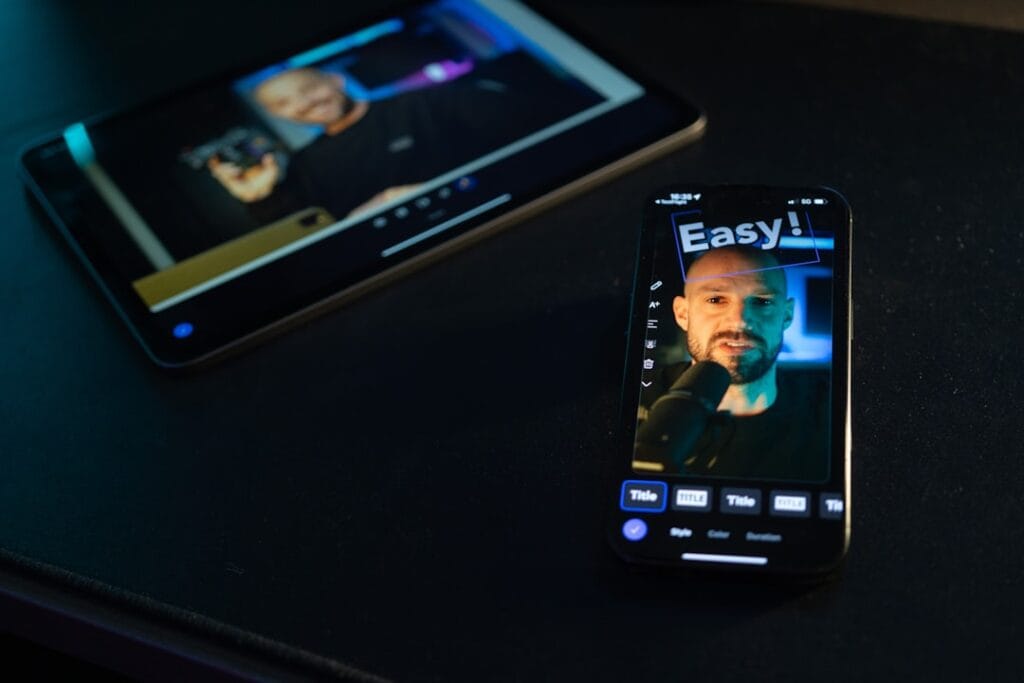
We tested each app’s free tier on an iPhone, exporting a 30-second 9:16 vertical clip with a cut, a text overlay, and a music track. The table below summarizes what we found. Detailed breakdowns follow.
| App | Free Export Max | Watermark on Free | Social Formats | IAP Pressure |
|---|---|---|---|---|
| iMovie | 4K / 60fps | None | Limited (no 9:16 preset) | None |
| CapCut | 1080p (free assets only) | Yes, if Pro assets used | 9:16, 1:1, 16:9 | High |
| VN Video Editor | 4K / 60fps | None (deletable title card) | 9:16, 1:1, 16:9 | Low |
| Adobe Premiere Mobile | 4K / 60fps | None | 9:16, 1:1, 16:9 | Low (AI credits only) |
| InShot | 4K / 60fps (advertised) | Yes (ad-removable on some builds) | 9:16, 1:1, 16:9 | High |
| YouTube Create | 1080p / 30fps | None | 9:16, 1:1, 16:9 | None |
| Edits (Instagram) | 4K / 60fps | None | 9:16, 1:1, 16:9 | None |
| Canva | 720p (free elements only) | Yes, if Pro elements used | 9:16, 1:1, 16:9 | Medium |
1. iMovie: The Zero-Catch Built-In Editor
iMovie is Apple’s own editor, pre-installed on most iPhones or a free download from the App Store. No account, no subscription, no watermark, ever. It exports up to 4K at 60fps, as long as your source footage was recorded at that resolution and frame rate. Apple’s support documentation confirms 4K projects export at 3840×2160, and 60fps is available at 1080p when enabled in Settings.
The catch for social creators: iMovie has no native 9:16 or 1:1 project preset. You can manually crop and position clips for vertical, but the app defaults to 16:9 landscape. There is no keyframe animation, no motion tracking, and no auto-captions. For a straightforward cut-and-export workflow, it is unbeatable. For layered, effects-heavy Reels, it runs out of room fast.
Verdict: Truly free. Best for simple edits where you control the aspect ratio manually or do not need vertical presets.
2. CapCut: Powerful Free Tier, Aggressive Upsell
CapCut (owned by ByteDance, the same company behind TikTok) is the most feature-rich free editor on this list. It offers a multi-track timeline, keyframe animation, speed ramping, chroma key, filters, and a large library of free templates and effects. CapCut’s own help pages confirm that the free tier allows 1080p export with no watermark, but only if your project uses exclusively free tools and assets.
The problem: after a 2025 pricing restructure, more features and assets moved behind a Pro badge. If you accidentally use a Pro-marked template, effect, or font, the export screen blocks you with a subscription prompt. Selecting 4K, 60fps, or “No Watermark” on a video that uses Pro content requires a paid plan. Check the US App Store listing for current CapCut subscription pricing, as tiers and prices change frequently. You can avoid the paywall by sticking to free assets, but the Pro badges are mixed into the same libraries, so it is easy to trip the wire without noticing.
Verdict: Free if you are careful. The free tier is genuinely capable for 1080p social exports, but the Pro upsell pressure is the highest of any app on this list. Check every asset for a Pro badge before you start editing.
3. VN Video Editor: Pro Features, No Paywall
VN Video Editor is the closest thing to a free CapCut replacement. It offers a multi-track timeline, keyframe animation, curve-based speed ramping, color grading with LUT support, and exports up to 4K at 60fps. The App Store listing confirms no mandatory watermark on free exports. A VN Pro tier exists at $7.99/month or $69.99/year, but most casual creators never need it.
One small catch: VN adds a brief “VN” title card at the start of new projects. It is a clip on the timeline, not a burned-in watermark. Delete it once and it is gone, but if you are moving fast you might miss it and export with the intro card attached. Auto-captions and some AI tools sit behind the paid tier, but the core editing experience, including 4K export, is fully free.
Verdict: Genuinely free with no watermark. The best balance of pro-level features and zero export friction on this list.
4. Adobe Premiere Mobile: 4K Export, No Watermark, No Ads
Adobe Premiere Mobile (iPhone only) is a surprisingly generous free editor from Adobe. According to Adobe’s own product page, all core editing functions are free, you can export unlimited videos in 4K with no watermarks, and there are no pop-up ads. The only paid element is Firefly generative AI credits for features like AI video generation and AI background expansion. The core timeline, auto-captions, speed effects, keyframes, and background removal are all free.
Export options include 720p, 1080p, and 4K at 24, 25, 30, or 60fps, with Low, Medium, and High quality settings and an HDR toggle. You can resize for any aspect ratio. A Pro subscription ($9.99/month or $99.99/year per the App Store) unlocks additional AI tools, but nothing about the core editing or export experience is gated.
Verdict: Genuinely free. The most professional timeline on this list, with zero export restrictions on the free tier.
5. InShot: Watermark on Every Free Export
InShot is the fast-trim-and-post app for social clips. It supports 9:16, 1:1, and 16:9, keyframe animation, chroma key, speed ramping, and advertises export up to 4K at 60fps. But the free tier stamps an InShot watermark on every export. The App Store listing is explicit: “InShot Pro Unlimited subscription removes the watermark and advertisements automatically.”
Some Android builds reportedly offer an ad-watching option to remove the watermark for a single export, but this is not consistently available across platforms or versions and should not be relied on for a clean workflow. US iOS pricing lists InShot Pro at $4.99/month, $19.99/year, or $49.99 lifetime, plus a separate $3.99 ad-removal purchase. The lifetime option is unusual and worth noting if you use InShot daily, but the free tier itself does not export clean.
Verdict: Bait-and-switch. The editor is capable, but the free tier exports with a watermark. Consider this a paid app with a free trial, not a free editor.
6. YouTube Create: Completely Free, No Catches, Low Ceiling
YouTube Create is Google’s answer to CapCut, and it arrived on iPhone after an initial period of Android-only availability. It is completely free: no watermark, no subscription, no in-app purchases, no premium tier. Every feature is available to all users. It supports 9:16, 1:1, and 16:9, includes auto-captions, background noise removal, background cutout, and a library of royalty-free music pre-cleared for YouTube monetization.
The limitations are real, though. Exports cap at 1080p and 30fps, even if your source footage was 60fps. There is no multi-track timeline, no keyframe animation, and no cloud sync (losing your phone or deleting the app erases all projects). YouTube has also acknowledged export bugs where videos sometimes render as 0.5-second clips or hang indefinitely. The fix is usually to reduce effects layers or drop to 720p.
Verdict: Genuinely free with zero upsell. Best for Shorts creators who need simple cuts, safe music, and one-tap YouTube publishing. Not for anyone who needs 60fps, 4K, or multi-track editing.
7. Edits (Instagram): 4K Export, No Watermark, IG-Integrated
Edits is Instagram’s own video editor, launched in 2025. The official Instagram for Creators page confirms: export in 4K with no watermark, share to any platform. It supports 9:16, 1:1, and 16:9, includes auto-captions, green screen, cutout, audio enhancement with background noise removal, and AI image animation. You can capture clips up to 10 minutes directly in the app and start editing immediately.
The App Store listing shows no in-app purchases. You do need an Instagram account to log in, which is a friction point if you do not already have one. Export settings include resolution up to 4K, frame rate up to 60fps, and SDR or HDR color. Instagram recommends exporting at 2K, HDR, 60fps for the best playback quality on the platform. The app also includes a live insights dashboard for Reels performance, which is useful if Instagram is your primary platform.
Verdict: Genuinely free. The strongest all-around free editor for Reels creators, with 4K export and zero paywall pressure.
8. Canva: Free Export With a Pro-Asset Trap
Canva is a design platform with a built-in video editor, not a dedicated video app. It supports 9:16, 1:1, and 16:9, includes auto-captions, transitions, text animation, and a massive library of stock footage, graphics, and music. According to Canva’s mobile app page, free users can download videos with no watermark as long as every element in the design is from the free library.
The trap: Pro assets are mixed into the same search results as free ones. Drop in one Pro template, one Pro stock clip, or one Pro graphic, and your export is watermarked or gated behind an upgrade prompt at download time. You often do not know you have used a Pro element until you hit export, after the work is done. Free-plan export resolution is capped at 720p (Canva Pro at $12.99/month unlocks 1080p and higher). For social video, 720p is acceptable but not ideal.
Verdict: Conditionally free. Exports are clean only if you exclusively use free elements, and the free resolution cap of 720p is a limitation. Better suited for design-heavy branded content than raw social clips.
Which App Fits Your Workflow?

Pick the app that matches how you actually create, not the one with the longest feature list. Here is a quick decision framework based on real creator workflows:
You make TikToks and Reels with effects and text overlays
Start with VN Video Editor. You get a multi-track timeline, keyframes, speed ramping, 4K export, and no watermark, all for free. If you need more AI tools like auto-captions and background removal and prefer an Instagram-integrated workflow, Edits is the alternative. Both export clean at no cost.
You want the simplest possible cut-and-export
YouTube Create is the lowest-friction option. No account hassle beyond a Google login, no watermark, no upsell. The 1080p/30fps cap is fine for most social content. If you need 4K or 60fps, move to iMovie, which is equally frictionless but lacks vertical presets.
You need a professional timeline with zero paywall
Adobe Premiere Mobile offers the most precise editing experience on this list, with frame-accurate cuts, unlimited tracks, auto-captions, keyframes, and 4K export, all free. The only paid items are generative AI credits. If you also edit on desktop Premiere Pro, project handoff is seamless.
You are tempted by CapCut’s effects library
CapCut’s free tier is real but comes with the highest risk of hitting a paywall at export. If you use it, stick strictly to free assets and avoid anything with a Pro badge. For a similar feature set with no export restrictions, VN is the safer choice. For a deeper comparison of browser-based playback tools once your edit is done, see our guide on browser-based video players compared.
Common Free-Tier Limitations to Watch For
Even the genuinely free apps on this list have ceilings. Knowing where they are saves you from discovering them mid-project.
Resolution caps
YouTube Create caps at 1080p/30fps. Canva’s free plan caps at 720p. CapCut’s free tier caps at 1080p. iMovie, VN, Adobe Premiere Mobile, Edits, and InShot all support 4K, though InShot’s 4K comes with a watermark unless you pay. For most social platforms, 1080p is the sweet spot. 4K matters if you are shooting on a newer iPhone and want maximum detail, but social platforms compress your upload anyway.
Asset traps
CapCut and Canva both mix free and Pro assets in the same search results. You can build an entire project on free elements, add one Pro sticker or template without noticing, and hit a paywall at export. The fix: check every asset for a Pro badge before adding it to your timeline. In CapCut, Pro items are marked with a small “Pro” label. In Canva, Pro elements have a crown icon.
Hidden title cards and intros
VN adds a short “VN” title card at the start of new projects. It is a timeline clip, not a burned-in watermark, so you can delete it. But if you export without checking, the card goes with it. Always scrub your timeline from frame one before hitting export.
Format and codec compatibility at export
Most of these apps export MP4 with H.264 video and AAC audio, the universal combo for social platforms. If you need to preview an exported file from a URL or check codec compatibility before uploading, our MP4 player handles H.264, H.265, and AV1 in Chrome and Edge, no install required.
Related Tools for iPhone Creators
Once you have exported a clean video, you need to preview, share, or play it back. Online Video Player handles that step: paste a direct video URL or drag in your exported file, and playback starts in seconds. No signup, no downloads, no codec packs. Bookmark the Online Video Player page for the next time you need to preview an export from a link or share a video without sending a massive file attachment.
The three apps that truly deliver free, no-watermark exports with no strings attached are VN Video Editor, Adobe Premiere Mobile, and Edits by Instagram. YouTube Create joins them with the caveat of a 1080p/30fps cap. iMovie is equally clean but lacks vertical presets. CapCut, InShot, and Canva all have real free tiers, but each has a trap at the export door: Pro-asset watermarks, a permanent logo, or a resolution cap. Pick the app that matches your workflow, test the free-tier export on a 10-second clip before committing to a full edit, and never let a watermark surprise you at the finish line again.
Frequently Asked Questions
Which free iPhone video editor has no watermark on exports?
VN Video Editor, Adobe Premiere Mobile, Edits by Instagram, YouTube Create, and iMovie all export without a watermark on their free tiers. VN and Adobe Premiere Mobile offer 4K export with no paywall. Edits also supports 4K with no watermark. YouTube Create caps at 1080p/30fps. iMovie supports 4K but lacks native vertical format presets.
Does CapCut add a watermark on free exports?
CapCut’s free tier does not add a watermark if your project uses only free tools and assets. However, if you use any Pro-marked template, effect, or font, the export will be blocked or watermarked unless you subscribe. Pro assets are mixed into the same libraries as free ones, so check for Pro badges before adding anything to your timeline.
What is the maximum export resolution on free iPhone video editors?
iMovie, VN Video Editor, Adobe Premiere Mobile, and Edits by Instagram all support 4K export on their free tiers. CapCut’s free tier caps at 1080p. YouTube Create caps at 1080p and 30fps. Canva’s free plan caps at 720p unless you upgrade to Pro.
Does InShot free version have a watermark?
Yes. InShot adds a watermark to every free-tier export. The watermark is removed only with an InShot Pro subscription, which costs $4.99/month, $19.99/year, or $49.99 for a lifetime license on US iOS. Some Android builds may offer ad-watching to remove the watermark for a single export, but this is not consistently available.
Can I edit vertical 9:16 videos for free on iPhone?
Yes. VN Video Editor, CapCut, Adobe Premiere Mobile, Edits, YouTube Create, InShot, and Canva all offer 9:16 vertical presets on their free tiers. iMovie lacks a native 9:16 preset, so you would need to manually crop and position clips for vertical format.