How to Wirelessly Connect TV to Computer | 7 Easy Methods (2026)
Discover how to wirelessly connect TV to computer using Miracast, Chromecast, AirPlay & more. Step-by-step guide with troubleshooting tips for Windows, Mac & Smart TVs. No cables needed!
How to Wirelessly Connect TV to Computer: 7 Easy Methods That Actually Work (2026)
Have you ever wanted to watch your favorite shows, presentations, or games on the big screen without dealing with messy cables? You’re in the right place. Learning how to wirelessly connect TV to computer opens up a whole new world of entertainment and productivity possibilities.
Gone are the days when you needed to drag HDMI cables across your living room or struggle with incompatible ports. Modern wireless technology makes connecting your computer to your TV incredibly simple, whether you’re using Windows, Mac, or even Linux. In this comprehensive guide, we’ll walk you through every method available, so you can choose the one that works best for your setup.
Why Connect Your Computer to TV Wirelessly?
Before we dive into the how-to steps, let’s talk about why going wireless is worth your time.
Freedom from Cable Chaos
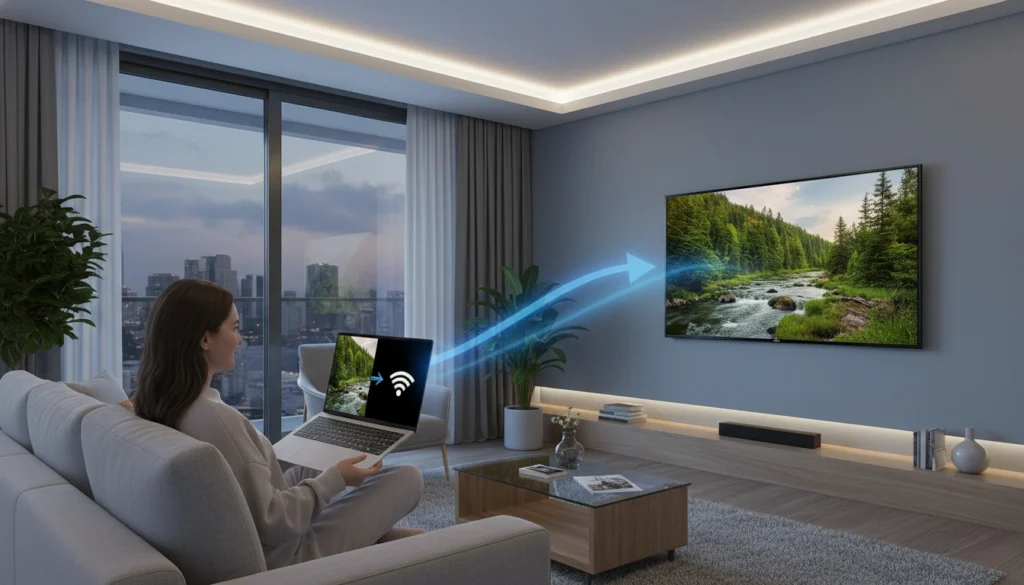
Nobody enjoys untangling cables or figuring out which HDMI port goes where. Wireless connections keep your space clean and organized. You can move your laptop around the room without worrying about cable length or accidentally unplugging something.
Better Entertainment Experience
Streaming movies, playing games, or sharing photos looks amazing on a larger screen. Your 55-inch TV beats your 15-inch laptop screen every single time. Plus, you get better sound quality through your TV’s built-in speakers or sound system.
Enhanced Productivity
Working from home? Connect your computer to your TV for a massive second monitor. Review spreadsheets, edit videos, or conduct presentations with plenty of screen real estate. It’s like having a whole new workspace without buying an expensive monitor.
What You’ll Need Before Getting Started
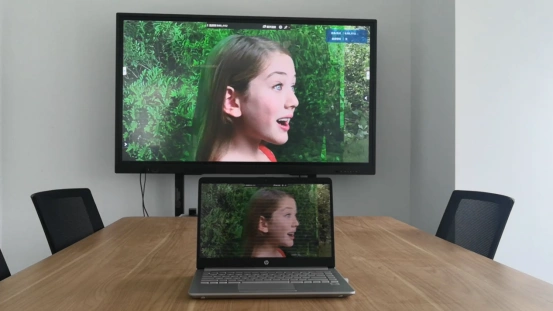
The good news? You probably already have everything you need. Here’s a quick checklist:
- A computer (Windows PC, Mac, or Linux machine)
- A Smart TV or a TV with wireless capability
- Both devices are connected to the same Wi-Fi network
- Basic knowledge of your computer’s operating system
Some TVs from the past 5-7 years come with built-in wireless display support. If your TV is older, don’t worry—we’ll cover affordable adapter options that work just as well.
Method 1: Using Miracast for Windows Computers
Miracast is Microsoft’s wireless display technology, and it’s built right into Windows 10 and Windows 11. Think of it as the Windows version of AirPlay. Most modern Windows computers and Smart TVs support it.
Step-by-Step Instructions:
- Make sure your TV is turned on and set to the correct input source
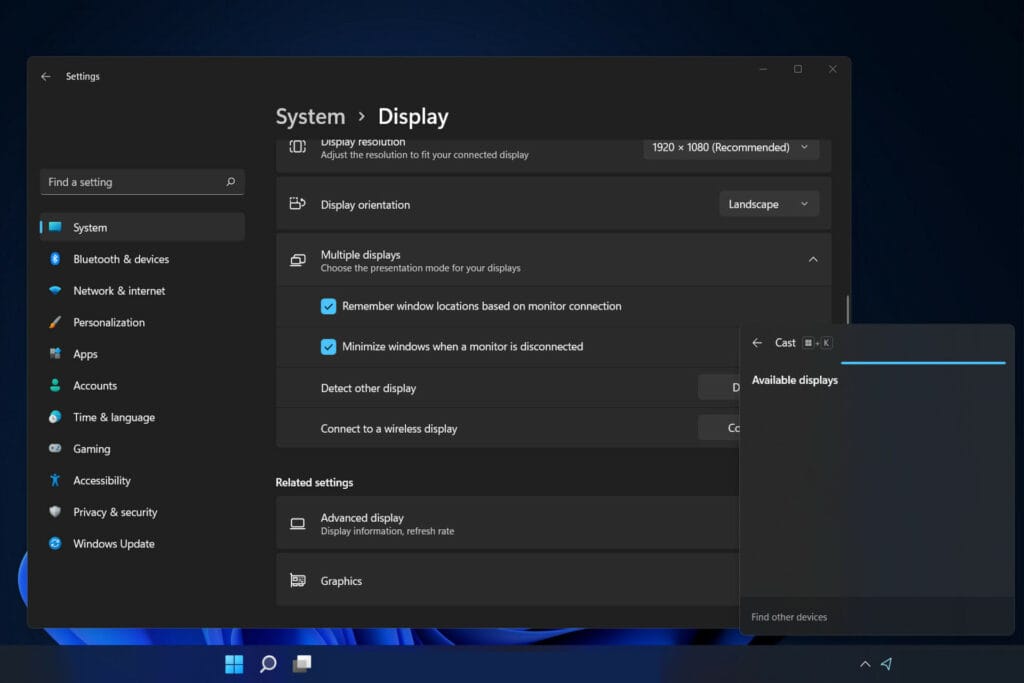
- On your Windows computer, press the Windows Key + K simultaneously
- A “Connect” panel will slide out from the right side of your screen
- Look for your TV’s name in the list of available devices
- Click on your TV name to initiate the connection
- Your TV might ask for permission to connect—select “Allow” or “Yes”
- Within seconds, your computer screen should appear on your TV
Adjusting Display Settings:
After connecting, you might want to change how your screens work together. Press Windows Key + P to see these options:
- PC screen only: Nothing shows on the TV
- Duplicate: Both screens show the same thing
- Extend: Your TV becomes a second monitor with extra space
- Second screen only: Everything appears on the TV, laptop screen goes black
Most people choose “Duplicate” for watching movies or “Extend” for working with multiple windows.
[Read more: Understanding Windows Display Settings for Better Productivity]
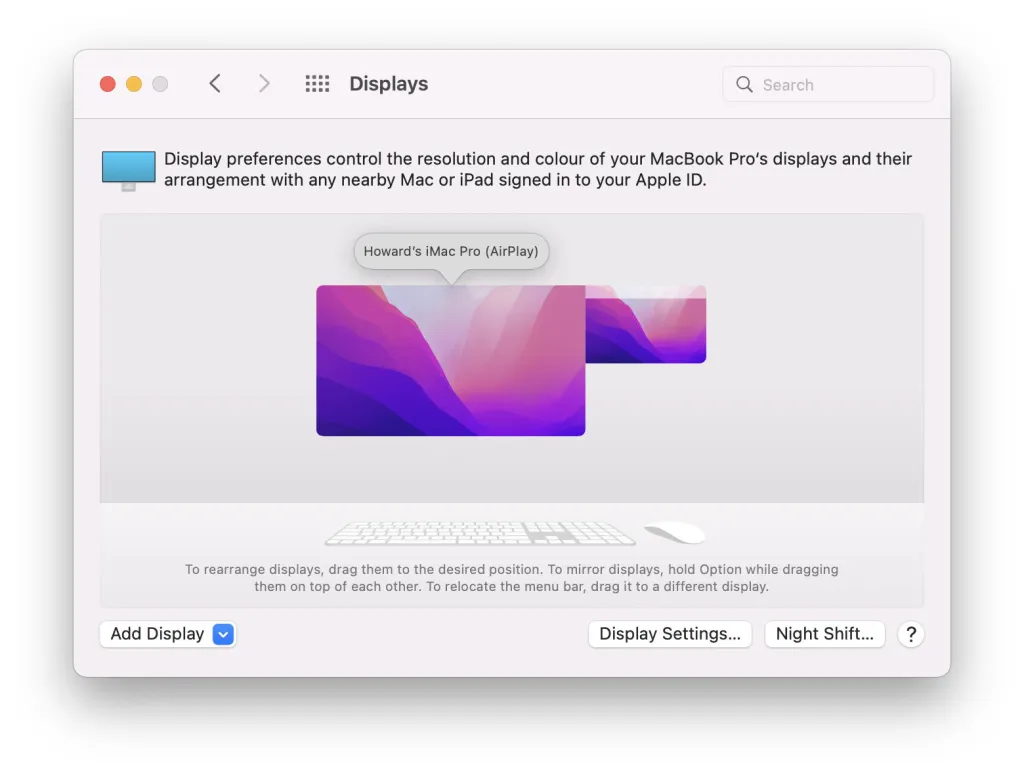
Method 2: Using Apple AirPlay for Mac Users
If you’re part of the Apple ecosystem, AirPlay makes wireless connection incredibly smooth. You’ll need either an Apple TV or a Smart TV that supports AirPlay 2.
Setting Up AirPlay Connection:
- Ensure your Mac and TV are connected to the same Wi-Fi network
- Look for the AirPlay icon in your Mac’s menu bar (it looks like a triangle with waves)
- Click the AirPlay icon and you’ll see available displays
- Select your Apple TV or AirPlay-compatible Smart TV from the list
- Choose whether to mirror your display or use the TV as a separate display
- Enter the code if your TV displays one for pairing
Pro Tip: Many newer Smart TVs from brands like Samsung, LG, Sony, and Vizio support AirPlay 2 without needing an Apple TV. Check your TV’s specifications or settings menu to see if it’s AirPlay-compatible.
Method 3: Google Chromecast for Cross-Platform Streaming
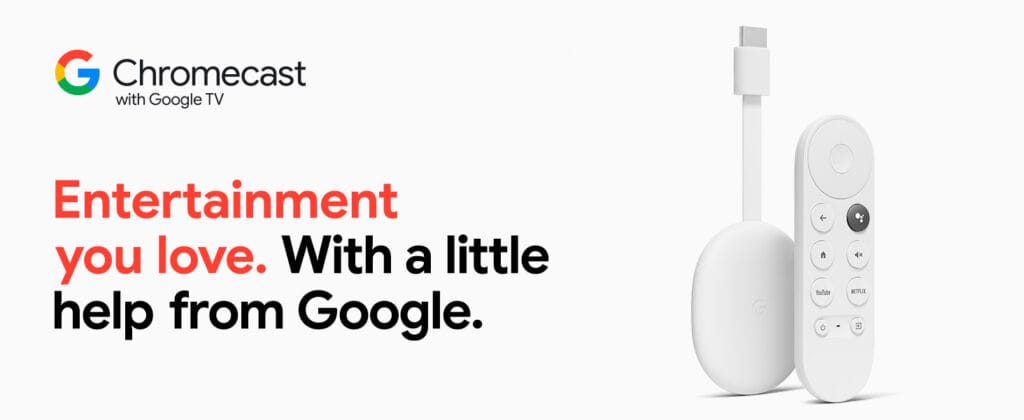
Chromecast works with Windows, Mac, Chromebook, and even Linux computers. It’s one of the most versatile options available and costs less than $30 for the basic model.
Initial Setup:
- Plug your Chromecast into your TV’s HDMI port
- Connect the USB power cable (either to your TV’s USB port or wall outlet)
- Switch your TV to the HDMI input where Chromecast is connected
- Download the Google Home app on your smartphone to complete setup
- Follow the on-screen instructions to connect Chromecast to your Wi-Fi
Casting from Your Computer:
- Open Google Chrome browser on your computer
- Click the three-dot menu icon in the top-right corner
- Select “Cast” from the dropdown menu
- Choose what you want to cast: a specific tab, your entire desktop, or a file
- Select your Chromecast device from the available devices list
- Your selected content will appear on your TV
What You Can Cast:
- Entire desktop (great for presentations)
- Individual Chrome tabs (perfect for streaming websites)
- Specific files like movies or photos
- Audio-only content to Chromecast Audio devices
Official Google Chromecast Support Page – https://support.google.com/chromecast
Method 4: Using Roku for Screen Mirroring
Roku devices aren’t just for streaming services—they also support screen mirroring from Windows and Android devices. While Roku doesn’t work with iPhone’s AirPlay natively, Windows users will find it very straightforward.
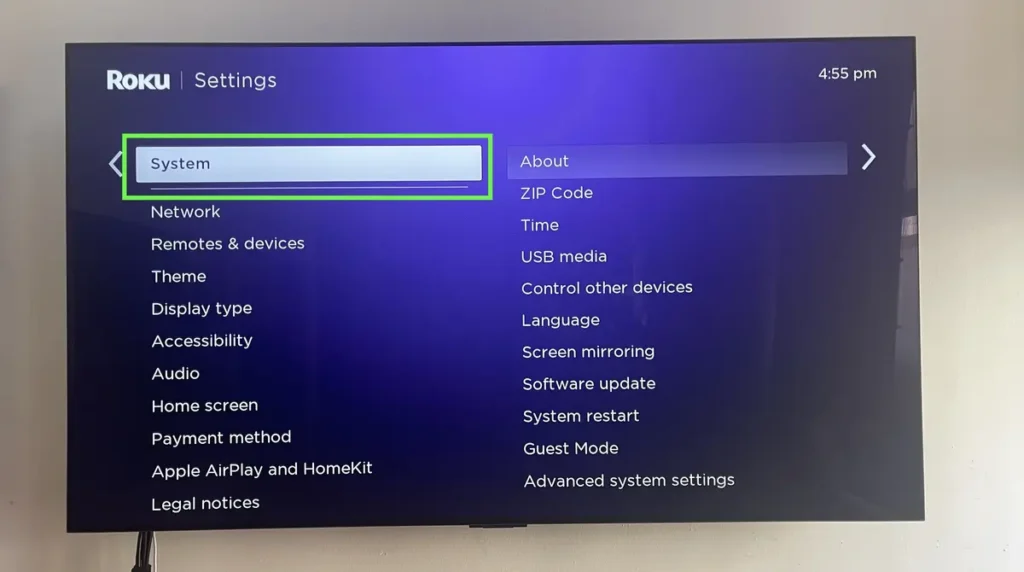
Enabling Screen Mirroring on Roku:
- On your Roku, go to Settings from the home screen
- Select System, then Screen mirroring
- Choose Screen mirroring mode
- Select either “Prompt” (asks permission each time) or “Always allow”
Connecting from Windows:
- Press Windows Key + K on your computer
- Your Roku device should appear in the available devices list
- Click on your Roku device name
- If you set it to “Prompt” mode, approve the connection on your TV
- Your screen will start mirroring to your TV
Method 5: Using Third-Party Wireless Display Adapters
Don’t have a Smart TV? No problem. Wireless display adapters are affordable dongles that plug into your TV’s HDMI port and add wireless capabilities.
Popular Options:
- Microsoft Wireless Display Adapter: Works specifically with Miracast-enabled Windows devices
- J5create ScreenCast 4K: Supports Miracast, AirPlay, and Chromecast in one device
- AIMIBO Wireless Display Adapter: Budget-friendly option supporting multiple protocols
Setup Process:
- Plug the adapter into your TV’s HDMI port
- Connect the power cable (usually USB)
- Switch your TV to the correct HDMI input
- Follow the on-screen instructions to connect to your Wi-Fi
- Use the appropriate connection method for your computer (Miracast for Windows, AirPlay for Mac)
These adapters typically cost between $25 and $80, depending on features and supported resolutions.
Read more: Choosing the Right Wireless Display Adapter for Your Needs
Method 6: Using Plex Media Server for Local Content
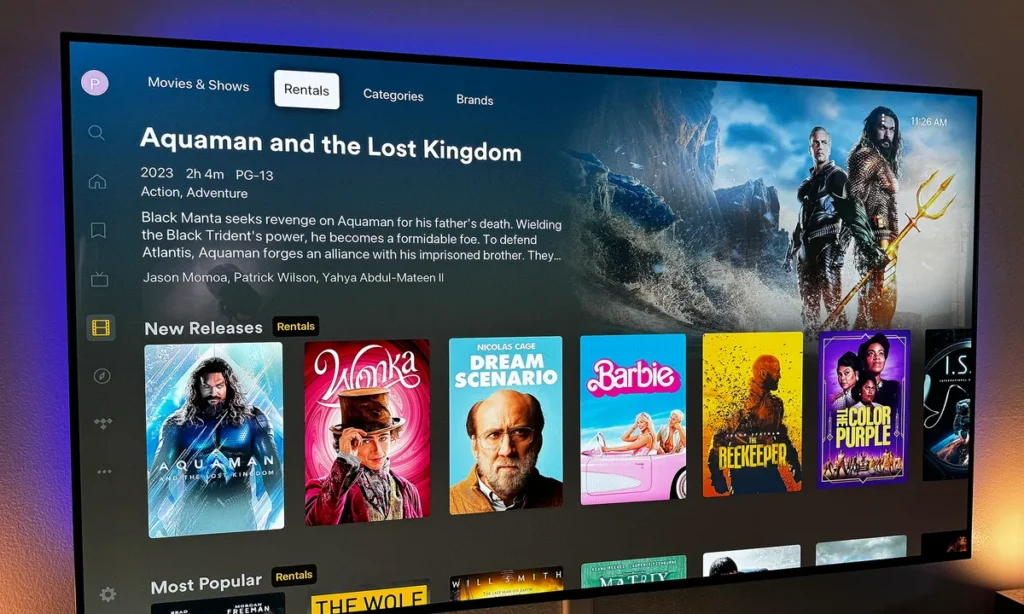
If you have a large collection of movies, TV shows, or music files on your computer, Plex offers an elegant wireless solution. It’s like creating your own personal Netflix.
Setting Up Plex:
- Download and install Plex Media Server on your computer from plex.tv
- Create a free Plex account
- Add folders containing your media files to your Plex library
- Plex will automatically organize and add artwork to your content
- Install the Plex app on your Smart TV from its app store
- Sign in with the same Plex account
- Your media library appears instantly on your TV
Why Plex Is Special:
Unlike screen mirroring, Plex streams files directly from your computer to your TV. Your computer can be in another room, and you can even close the lid on your laptop—as long as it’s powered on and connected to Wi-Fi, Plex keeps working.
External link: https://support.plex.tv – Plex Official Getting Started Guide
Method 7: Using Third-Party Software Solutions
Several software applications can enhance or enable wireless connections, especially if built-in options aren’t working well.
AirParrot 3:
Works on both Windows and Mac, supporting AirPlay, Chromecast, and Miracast. It’s particularly useful if you want to mirror to multiple displays simultaneously or need features like extended desktop support.
5KPlayer:
A free media player that includes AirPlay receiver capabilities. Great for streaming content from your phone to your computer, then from your computer to your TV.
AirDroid Cast:
Originally designed for casting phone screens, it also works excellently for computer-to-TV wireless connections with minimal lag and high-quality streaming.
Common Issues and How to Fix Them
Even with the best technology, you might encounter some hiccups. Here are solutions to the most common problems:
TV Not Showing Up in Available Devices:
- Confirm both devices are on the same Wi-Fi network
- Restart your router
- Disable VPN software temporarily
- Update your TV’s firmware through its settings menu
- Restart both your computer and TV
Connection Keeps Dropping:
- Move closer to your Wi-Fi router
- Reduce interference by moving other wireless devices away
- Switch to a 5GHz Wi-Fi band if available (faster and less congested than 2.4GHz)
- Close bandwidth-heavy applications running in the background
Poor Video Quality or Lag:
- Lower the resolution in your display settings
- Close other programs using your internet connection
- Hardwire your computer to the router with an Ethernet cable if possible
- Reduce the distance between your router and TV
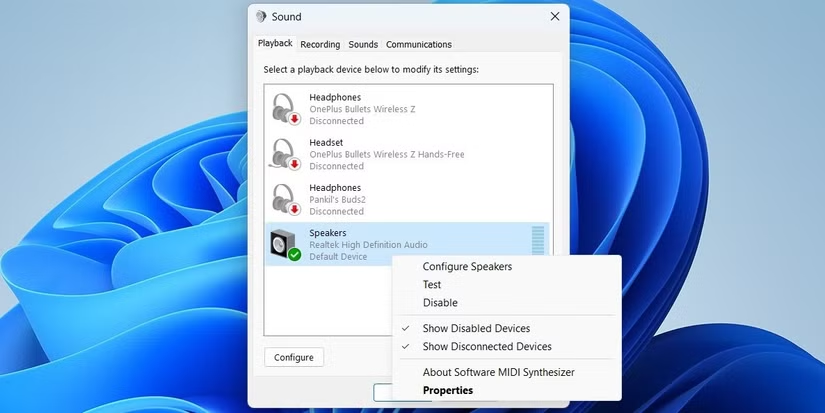
No Sound on TV:
- Right-click the volume icon in your system tray
- Select “Open Sound settings.”
- Under “Choose your output device,” select your TV
- Ensure the TV volume isn’t muted
Read more: Advanced Troubleshooting for Wireless Display Connections
Wireless vs. Wired: Which Is Better?
Let’s be honest—both methods have their place. Here’s when to use each:
Choose Wireless When:
- You want convenience and clean aesthetics
- Your computer and TV are in the same room
- You’re streaming videos, giving presentations, or browsing
- Cable length would be an issue
Choose Wired (HDMI) When:
- You’re gaming and need zero latency
- You want guaranteed 4K quality at high refresh rates
- You don’t have reliable Wi-Fi
- You’re doing color-critical work, like photo or video editing
For most everyday uses—Netflix binges, YouTube videos, PowerPoint presentations—wireless works perfectly. Serious gamers and creative professionals might prefer the reliability of HDMI cables.
Tips for the Best Wireless Experience
Optimize Your Wi-Fi Network:
Position your router centrally and elevated. Avoid placing it in cabinets or behind furniture. If possible, use a 5GHz network for faster speeds and less interference.
Update Everything:
Keep your computer’s operating system, TV firmware, and router firmware up to date. Many connection issues get fixed in software updates.
Use Game Mode Sparingly:
Most TVs have a “Game Mode” that reduces input lag. While great for console gaming, it’s usually unnecessary for wireless computer connections and might reduce picture quality.
Consider Your Use Case:
If you’re primarily streaming videos, connection quality matters less than if you’re gaming or doing real-time presentations. Choose your wireless method based on what you’ll actually be doing.
External: How to Optimize Your Home Wi-Fi Network – Link to networking guide
Security Considerations
Wireless connections are generally safe, but keep these security practices in mind:
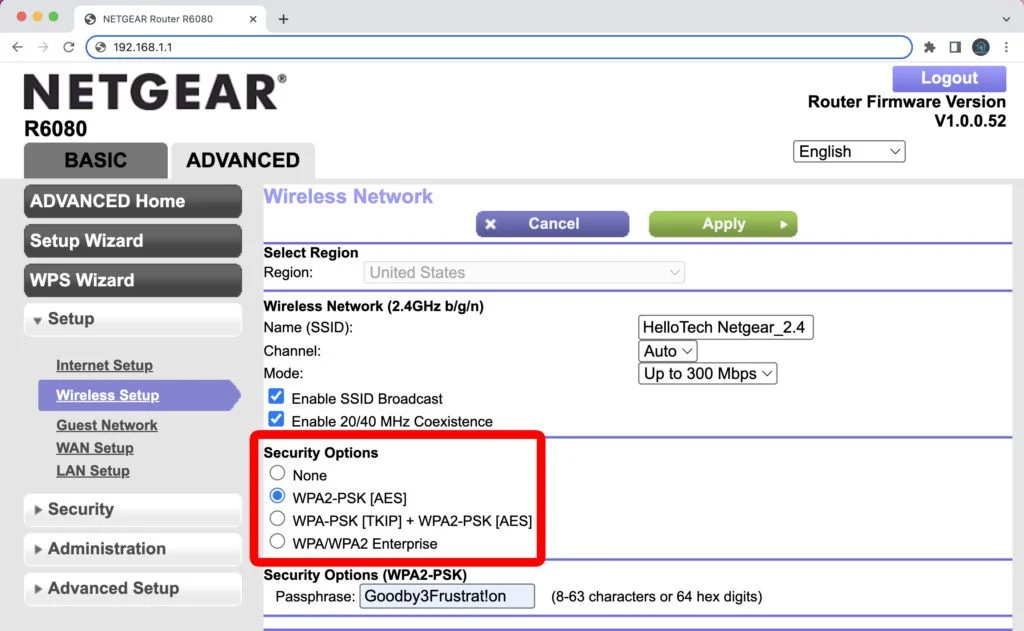
- Always use a password-protected Wi-Fi network
- Keep your devices’ software updated with the latest security patches
- Don’t accept connection requests from unknown devices
- Use encrypted connection methods when available
- Consider using a separate guest network for casting if you have visitors
Future of Wireless Display Technology
The technology keeps getting better. Wi-Fi 6 and Wi-Fi 7 are making wireless connections faster and more reliable than ever. We’re seeing:
- Higher resolutions (8K support is coming)
- Lower latency (getting closer to wired performance)
- Better multi-device support
- Improved compression algorithms for better quality
Within a few years, wireless might completely replace wired connections for most users.
Frequently Asked Questions
Can I wirelessly connect an old computer to a new TV?
Absolutely! As long as your computer supports Wi-Fi, you can use Chromecast, wireless display adapters, or third-party software solutions regardless of your computer’s age.
Does wireless connection drain laptop battery faster?
Yes, maintaining a wireless connection uses more power than normal. Keep your laptop plugged in for extended viewing sessions.
Can I connect multiple computers to one TV?
Most TVs can only mirror one device at a time, but you can easily switch between different computers by disconnecting one and connecting another.
Will this work with Linux computers?
Yes! Chromecast works great with Linux. There are also Linux-compatible tools like Miraclecast for Miracast support.
Is there a delay between my computer and TV?
There’s usually a small delay (100-200 milliseconds) with wireless connections. You’ll notice it while gaming but barely during video playback or presentations.
Making the Connection Today
Learning how to wirelessly connect TV to computer doesn’t have to be complicated. Whether you’re using Windows with Miracast, Mac with AirPlay, or any computer with Chromecast, the process takes just a few minutes.
Start with the method that matches your devices. If you have a Windows computer and a Smart TV, try Miracast first. Mac users should go with AirPlay. Everyone else can benefit from the universal compatibility of Chromecast.
Remember, the goal isn’t perfection—it’s enjoying your content on a bigger screen without cable clutter. Pick one method from this guide, follow the steps, and you’ll be streaming in no time.
The wireless future is here, and it’s easier than you think. So grab your remote, fire up your computer, and enjoy the freedom of cable-free entertainment. Your living room will thank you for the cleaner look, and you’ll wonder why you didn’t make the switch sooner.